Tampilkan postingan dengan label BlackBerry. Tampilkan semua postingan

Download BBM For Android

Aplikasi BBM Gratis Untuk Android dan Iphone. BlackBerry Messenger untuk Smartphone - BBM for Android adalah aplikasi BlackBerry Messenger yang kini sudah bisa di unduh dan di install untuk di gunakan pada pengguna Android. Tentunya kalian para pemakai Smartphone Android maupun iOS sudah sangat menunggu untuk dapat menerapkannya di Smartphone Anda, dan kini BBM sudah siap di pasarkan ke OS Android dan iphone. Blackberry Messenger (BBM) ini merupakan aplikasi chatting yang memang sangat populer, hampir seluruh anak muda dan berbagai komunitas di Indonesia ini tidak lepas dari BBM ini. Aplikasi ini dapat di download secara gratis di Google Play Store melalui perangkat Android.
Namun yang perlu Anda ketahui adalah banyak sekali aplikasi BBM palsu yang beredar di Google Play Store, Jadi Anda harus pintar untuk dapat mendownload Aplikasi ini. Jika Anda ingin mendownload aplikasi ini, perlu di perhatikan adalah nama developer/pengembang aplikasi ini. Pengembang resmi Aplikasi BBM ini adalah yang menggunakan nama "BlackBerry Limited".
Agar Anda tidak salah download Aplikasi BBM Android ini, silahkan download melalui Tautan di bawah ini yang saya dapatkan dari Kompas Tekno. ini merupakan dari BlackBerry resmi yang bisa Download  DISINI.
Link download/Tautan di atas itu merupakan halaman situs aplikasi-aplikasi yang resmi dikeluarkan oleh BlackBerry.
Selain dari link di atas, BlackBerry juga menyebutkan aplikasi BBM juga dapat di download dari situs resmi BlackBerry asli  DISINI
Perlu di perhatikan juga bagi Anda para pengguna Android, Aplikasi BBM ini hanya dapat berjalan di perangkat Android semua merek yang telah menggunakan OS Android 4.0 ke atas (Ice Cream Sandwich dan Jelly Bean).
Continue Reading...

BlackBerry Merilis Aplikasi BBM untuk Android

Kabar mengejutkan sekaligus menggembirakan datang dari BlackBerry. BlackBerry baru saja mengumumkan bahwa mereka akan segera meluncurkan aplikasi BlackBerry Messenger (BBM) untuk iOS® and Android™.

Direncanakan, aplikasi BBM for iOS dan BBM for Android tersebut akan sudah tersedia di App Store dan Google Play pada musim panas ini (sekitar Juni-Agustus).

Pada versi BBM pertama dengan dukungan multi-platform ini, para pengguna akan bisa mendapatkan berbagai fitur berikut ini:

    Chatting dengan banyak teman
    Berbagi catatan suara
    Grup BlackBerry, pengguna BBM dapat membentuk grup hingga 30 orang
    Berbagi entri kalender, berbagi foto, berbagi file dan berbagi lainnya.

Kita tunggu saja kehadirannya.

sumber : teknoup
Continue Reading...

6 Triks Hindari BlackBerry Nyedot Pulsa

Hindari Pulsa Tersedot Dua Kali di BlackBerry Smartphones anda Dengan 6 Langkah ini.
Masih banyak kasus terjadi buat user yang sudah berlangganan Full BlackBerry Internet Service – BIS unlimited, namun pulsa masih kepotong.

Hal ini disebabkan oleh banyak faktor, bisa karena aplikasi 3rd party yang menggunakan jalur WAP, ataupun faktor teknis lainnya. Berikut 6 langkah untuk menanggulangi permasalahan tersebut:

Langkah 1:Cek Browser Configuration
- buka browser
- pilih option
- pilih browser configuration
- pastikan pada bagian Browser adalah internet browser

Langkah 2:Cek Browser General Properties
- pilih browser - pilih option
- pilih general properties
- pastikan pilihan pada bagian default browser adalah Internet Browser.

Langkah 3: Cek Default Browser
- pada menu pilih option
- pilih advanced option
- pilih browser
- pastikan default browser configurationnya adalah Internet Browser

Langkah 4:Cek Advance Option
- pada menu pilih Option
- pilih advanced option
- pilih Browser Push
- Hilangkan tanda centang pada Enable WAP Push
- hilangkan tanda centang pada pilihan Allow WAP Push Aplication
– Lalu simpan

Langkah 5: Cek APN setting
- pada menu pilih option
- pilih advanced option
- pilih TCP/IP
- centang pada bagian APN Setting Enabled
- isi APN dengan blackberry.net
- user dan password kosong
- lalu simpan.

Langkah 6:Cek Option Data Roaming
- pada menu pilih Option
- pilih Mobile Network
- Ubah pilihan pada While Roaming menjadi Off (Hal ini untuk mematikan data tidak aktif ketika berada di area roaming)
- atau pilih Prompt supaya blackberry akan menanyakan apakah ingin tetap terhubung dengan internet ketika berada di area roaming
sumber
Continue Reading...

Kode Rahasia HP BLACKBERRY


Untuk Update BB Kali ini saya share Kode Rahasia HP BLACKBERRY.
Berikut Ulasan Mengenai Kode Rahasia HP BLACKBERRY:
Menampilkan kekuatan sinyal Anda dalam desibel, bukan bar.
Tahan "Alt" dan tekan "N", "M", "L", "L" (ulangi untuk membalikkan efek)
Buku Alamat file verifikasi.
Cek data di Buku Alamat Anda untuk inkonsistensi.
Dalam Buku Alamat, tahan "Alt" dan tekan "V", "" A, "L", "D" ..

Buku Alamat membangun kembali struktur data.
Tahan "Alt" dan tekan "T", "B", "L", "D" ..

Lihat sumber kode.
Menampilkan kode sumber halaman Web.
Dalam Browser,Tekan "Alt" dan tekan "R", "B" "V", "S" ..

Bantu Aku! menu.
Menyediakan informasi teknis penting tentang perangkat Anda, karena ketika mencari dukungan teknis atau membantu di forum ...
Tahan "Alt" dan (kiri) "shift", kemudian tekan "H" ..

 IMEI layar.
Menampilkan peralatan internasional untuk perangkat mobile Anda identitas (IMEI - nomor seri) pada layar ... Juga menerjemahkan dari semua ponsel GSM lainnya.
Ketik "*", "#", "0", "6", "#" pada layar Home ..

Soft reset
Melakukan "soft reset" perangkat Anda; (mis. Menghapus baterai selama beberapa detik).
Tekan-dan-terus "Alt", kemudian tekan-dan-terus (kiri) "shift", kemudian tekan-dan-terus "Del" ..

Event Log.
Menampilkan peristiwa log semua aktivitas sistem-tingkat yang terjadi pada perangkat Anda ...
Tahan "Alt" dan tekan "L", "G", "L", "G" ..

 Semua rahasia ini telah diuji pada BlackBerry 8800 dan BlackBerry Curve 8300; ..
Dalam beberapa kasus, Anda akan perlu berada pada layar Home pada saat Anda memasukkan kode-kode ...
Kunci pintas:
A atau C = buku telepon
S = cari
F = telepon profil
W atau B = browser
H = membantu
K = kunci tombol
L = kalender
V = pesan
pesan M = folder
R = alarm
T = tugas
U = Kalkulator
I = aplikasi
O = pilihan
P = telepon.
T - ujung atas halaman (di browser)
B - Bottom halaman (di browser)
Ruang Angkasa - Halaman bawah (di browser)
ALT + Kanan Shift + Del = hard reset
D - Memo pad
U - Beralih di antara hide / unhide di bar judul (di browser)
ALT + NMLL = angka bukan bar kekuatan sinyal

Semoga Kode Rahasia HP BLACKBERRY ini Bermanfaat untuk anda...
Continue Reading...

Cara Memperbaiki / Mengatasi Blackberry yang sering restart

BB FaqSebuah kondisi saat Blackberry melakukan restart berulang-ulang, hal yang menggangu untuk aktifitas nyaman dengan Blackberry yang Pembaca miliki. Solusi sederhana untuk hal ini yang bisa dilakukan bahkan oleh orang awam, wanita, dan anak-anak, hanya cukup mengikuti langkah-langkah yang Penulis dapatkani. Perhatian sebelum mengikuti semua langkah ini, lepas memory card dan lihat apa permasalahannya sudah ditemukan, karena memory card dapat membuat Blackberry pada kondisi seperti ini, dan semoga Pembaca telah memiliki back up data, agar mudah mengembalikan data-data penting. Jika tidak memiliki backup data sebelumnya... no comment. Ok mari ke tulisan berikutnya!.

Hal-hal Mendasar
Permasalahannya adalah perangkat sering melakukan proses restart berulang, bahkan hal ini tidak mengijinkan koneksi USB untuk desktop manager, dan sebagai hasilnya Pembaca tidak memiliki kesempatan untuk membikin backup data atau bahkan memuat OS Blackberry.

Kebutuhan
BlackBerry Desktop Manager, Download.
BlackBerry Operating System, Download.
Kabel USB yang sesuai dengan perangkat Blackberry.

Langkah-langkah :
Pastikan Blackberry Pembaca tidak terhubung ke komputer dan Desktop Manager tertutup. Temukan dan buka "Aplication Loader Program" pada Windows, bisa ditemukan di drive C:\. Buka File browser dan arahkan ke Program Files -> Common Files -> Research In Motion -> AppLoader.

Temukan aplikasi bernama "Loader" dan jalankan!.
BBnuked

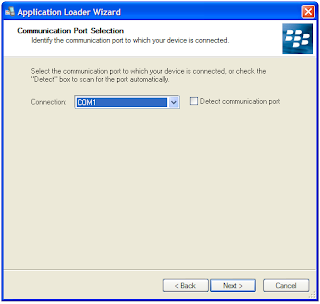
Klik Next
BBnuked

Sekarang dibagian yang sedikit memerlukan trik dan diperlukan perhatian penuh. Pasang Blackberry saat tepat seperti gambar diatas. Ketika bertuliskan "Com1" lalu kemudian menjadi "USB-PIN:UNKNOWN" segera klik "next. Hal ini hanya akan terjadi seketika Blackberry Pembaca pada awal siklus restart. Hal termudah untuk membuat hal ini terjadi lagi dari pada harus menunggu ialah dengan cabut dan pasang kembali baterai.

BBnuked

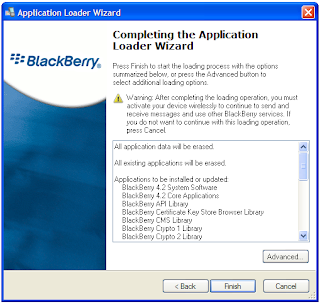
Sementara Blackberry memperbarui systemnya untuk keluar dari siklus restart, pilih aplikasi yang Pembaca inginkan agar Apploader memasangnya.

BBnuked

BBnuked

BBnuked

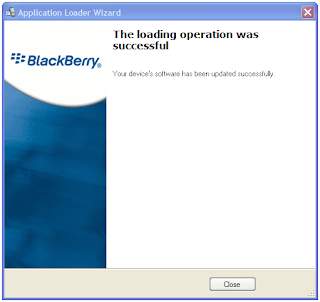
Dan perjalanan untuk menyelesaikan permasalahan Blackberry Pembaca telah berakhir. Buka Desktop Manager dan muat (load) semua back up dari perangkat Blackberry, dan jika sebelumnya pembaca tidak melakukan back up data... silahkan ucapkan "selamat tinggal kenangan lama" dan ucapkan "lembaran baru".

sekian artikel mengenai Cara Memperbaiki / Mengatasi Blackberry yang sering restart. Semoga artikel ini bermanfaat dan dapat menyelesaikan permasalahan yang anda alami,
Continue Reading...

Tips Pintar Menghemat Baterai Blackberry


Blackberry sekarang sudah menjadi gaya hidup bagi masyarakat di kota-kota besar, banyaknya fitur yang tersedia pada Blackberry menjadi daya tarik bagi kita untuk membelinya. Kemudahan bersosialisasi di jejaring sosial, BBM dan layanan internet lainnya.

Namun semua fitur itu harus dibayar dengan mengorbankan baterai. Baterai jadi cepat habis. Bagi anda yang sering mengalaminya, bisa mecoba tips singkat untuk meningkatkan daya tahan baterai Blackberry Anda.

- Pilihlah kartu dan operator yang memiliki banyak jaringan dan tentunya jaringannya stabil.
- Pada saat browsing, sebaiknya setting Repeat Animations ke parameter paling rendah, dan pada saat menutup browser aplikasi dengan menggunakan tombol ESC atau option-close. Pilihlah situs khusus untuk mobile, dan hindari mengunjungi situs full web.
- Pada saat mentransfer data atau media, gunakan aplikasi Blackberry Desktop Manager
- Charge baterai sesering mungkin dan Pilih charger standar ke colokan listrik.
- Atur Screen brightness and timeout display, serta kurang volume dan matikan key tone
- Gunakan shortcut, dan matikan koneksi apabila tidak dipakai dan Sebisa mungkin gunakan signal 2G daripada 3G untuk koneksi jaringan

Semoga tips singkat ini bisa bermanfaat untuk memperpanjang daya tahan baterai Blackberry Anda.
Continue Reading...

RIM Luncurkan Smartphone BlackBerry Bold 9900 di Indonesia


(RIM) mengumumkan peluncuran smartphone terbaru BlackBerry Bold 9900 di Indonesia. Smartphone BlackBerry Bold 9900 akan tersedia pada akhir September ini dengan harga Rp5.999.000 melalui distributor-distributor resmi Indonesia: PT. Teletama Artha Mandiri, PT. Comtech Cellular, dan PT. Selular Media Infotama.

BlackBerry Bold 9900 adalah smartphone BlackBerry tertipis dengan ketebalan hanya 10,5 mm dan yang pertama menawarkan gabungan antara keyboard berperforma tinggi dan integrasi layar sentuh dalam satu rancangan ikonis BlackBerry Bold. BlackBerry 9900 terbaru ini juga merupakan smartphone BlackBerry pertama yang mempunyai built-in support untuk NFC (Near Field Communications) yaitu teknologi baru yang memungkinkan untuk menghasilkan berbagai kapabilitas terbaru yang mengasyikkan, termasuk kemampuan untuk dipasangkan dengan aksesoris NFC atau membaca SmartPoster tags cukup dengan menepuk smartphone ini.

Dengan rancangan yang indah, keyboard yang efektif dan layar sentuh yang brilian, BlackBerry Bold 9900 ini dibuat dengan bahan-bahan terbaik termasuk rangka stainless steel yang menghasilkan sentuhan akhir pada smartphone yang luar biasa.

Hastings Singh, Wakil Presiden RIM wilayah Asia Selatan mengatakan: “Kami sangat gembira dapat membawa smartphone BlackBerry 9900 yang telah sangat ditunggu-tunggu ini ke Indonesia. Berdasarkan rancangan seri BlackBerry Bold terdahulu, smartphone terbaru ini menawarkan pengalaman komunikasi bergerak terbaik, yang menurut kami akan disukai oleh pelanggan Indonesia. Sebagai anggota dari seri terbaru BlackBerry 7 kami, Bold 9900 ditandai dengan performa lebih cepat, pengalaman browsing lebih baik dan kapabilitas multimedia yang lebih kaya.

OS BlackBerry 7 yaitu sistem operasi untuk BlackBerry Bold 9900 memperkenalkan generasi terbaru browser BlackBerry dengan kecepatan lebih signifikan, pengalaman web browsing lebih halus yang merupakan salah satu yang terbaik pada industri ini. Dengan menggabungkan performa Webkit browser engine terdepan yang telah diperbarui dengan peningkatan hardware yang bertenaga, smartphone berbasis BlackBerry 7 menghasilkan kemampuan browsing 40 persen lebih cepat daripada BlackBerry 6 dan hingga 100 persen lebih cepat daripada BlackBerry 5.

Peningkatan tambahan pada generasi browser BlackBerry terbaru ini juga telah mengoptimalisasi fungsi zooming dan panning untuk navigasi web lebih lancar dan performa HTML5 yang lebih optimal untuk pengalaman gaming dan video yang luar biasa.

Untuk keterangan lebih lanjut, silakan mengunjungi http://id.blackberry.com/Bold9900.
Continue Reading...

BlackBerry 9980 Knight ala Metal Karya Porsche Design akan Diresmikan 27 Oktober 2011


BlackBerry 9980 Metal yang pernah bocor sebelumnya, yang juga kadangkala disebut Knight, akan diresmikan pada acara 27 Oktober di Dubai. BlackBerry 9980 Knight ini merupakan adaptasi dari Bold 9900 dengan logam, yang tampak gaya dan terlihat berbeda. Namun spesifikasi lainnya tetaplah sama dengan layar 2,44 inci, resolusi 640×480, 1.2GHz prosesor Snapdragon, kamera lima megapiksel fokus tetap , dan 8GB untuk penyimpanan.

Apakah smartphone ini akan mendapatkan aplikasi khusus dari Porsche atau fitur spesifik lain saat ini tidak diketahui. Juga tidak diketahui kapan tanggal rilis, meskipun 9980 ini kemungkinan akan membawa diri sebagai ponsel mewah ditargetkan pada UEA dan negara-negara lain di mana BlackBerry dianggap sebagai perangkat yang hot.
Continue Reading...

BlackBerry 9380 dan Blackberry 9790 dengan BB OS 7 Telah Diumumkan oleh RIM


RIM telah mengumumkan smartphone BlackBerry 9380 dan 9790 baru . Namun, ini bukan pengumuman biasa yang biasa dilengkapi dengan spesifikasi rinci dan gambar . Pengumuman ini datang dalam bentuk posting blog yang ditujukan terhadap komunitas pengembang, menginformasikan mereka tentang adanya handset baru.

Hanya ada informasi sedikit mengenai dua ponsel baru tersebut pada saat ini. Informasi yang dibocorkan adalah bahwa BB 9380 akan memiliki antarmuka layar sentuh penuh seperti Storm dan memiliki layar 3,2 inci, resolusi 480 x 360 . Sedangkan Blackberry 9790 di sisi lain akan memiliki layar 2,44 inci, layar dengan resolusi 480 x 360 serta keypad full QWERTY. Tentu saja, kedua ponsel ini akan menjalankan OS BlackBerry terbaru 7.

BlackBerry telah merilis SDK dengan built-in simulator untuk masing-masing ponsel yang sebenarnya tujuan utama dari posting blog.

Anda bisa membaca blog tersebut di:
http://devblog.blackberry.com/2011/10/new-blackberry-7-simulators/
Continue Reading...

Motorola Admiral Hp Android QWERTY CDMA dengan Spesifikasi Prosesor 1.2 Ghz


Motorola Admiral telah bocor sebelum peluncuran oleh operator Sprint berbasis CDMA. Ponsel Android ini memiliki layar 3,1 inci yang relatif besar (untuk kategori QWERTY) dan menggabungkan keyboard QWERTY .Rencana hp ini akan datang dengan Android 2.3 dan akan didukung oleh prosesor single-core 1.2GHz MSM8655 Qualcomm Snapdragon.

Menurut sumber Engadget, perangkat ini juga akan dilengkapi kamera 5-megapiksel di bagian belakang, mampu merekam video HD di 720p. Sementara tidak ada kamera menghadap ke depan. Motorola Amdmiral dilengkapi baterai 1860mAh kapasitas tinggi dan memenuhi spesifikasi militer untuk ruggness AS 810G .

Continue Reading...

Back Up and Restore a BlackBerry to a New Device

When Blackberry users upgrade their devices, the BlackBerry Desktop Manager software makes the task a breeze. The Desktop Manager software includes a feature that will allow the user to back up all data on the original BlackBerry to the new device, or to choose which data and applications to transfer. The Device Switch Wizard is easy to use and a user-friendly way to get your new device up and running quickly.

Instructions
1.Open the BlackBerry Desktop Manager software on the computer.

2.Connect the original BlackBerry to the computer using the USB connector cable. The device will register with the description and device PIN in the lower right corner of the Desktop Manager main screen.

3.Click the option labeled "Switch Blackberry Devices" on the main screen of the Desktop Manager. The feature known as the Device Switch Wizard will launch. The Device Switch Wizard will walk the user through the data and application transfer from the original device to the new device. In the Device Switch Wizard, three columns will be displayed -- Current Device, New Device and Options. This screen allows the user to select specific data and applications for transfer, or to select "All" to transfer all data and applications.

4.Select the programs and data to transfer to the new device using the "Options" column. If desired, select "Update Applications" to include the step of automatically updating all applications as they are transferred. Click "Next." Progress bars will appear and files will be transferred from the original device onto the computer in a temporary location to await transfer to the new device. When the file copy process is complete, a notification will appear to connect the "New Device."

5.Connect the new device to the computer using a USB connector cable. The BlackBerry Desktop Manager software will recognize the device and list the description and device PIN in a drop-down box in the lower-right corner of the screen.

6.Select the new PIN from the drop-down menu. Click the "Next" button.

7.Click the "OK" button to begin the file transfer to the new device. Progress bars will indicate the status of the copy process. If the option to update applications was selected, this step will be applied as needed.

8.Click "Finish" when prompted. The new device is now updated with data and applications from the original BlackBerry.


Tips & Warnings
All accounts and passwords (email, Web) will need to be re-entered as this security data does not transfer.
Continue Reading...

Get the Original BlackBerry Games Back

Several games are installed by default along with the Blackberry operating system. Maybe you've uninstalled certain games by mistake, or had to remove them and now want them back. You can get the original BlackBerry games back by using the BlackBerry Desktop Manager software. Thanks to the Desktop Manager's Application Loader, the original games remain listed on the computer, even if they have been deleted from the BlackBerry. Reinstalling the original games to the the BlackBerry is a straightforward task.

Instructions
1.Open the BlackBerry Desktop Manager software on your computer. If you don't have this software you can download it from BlackBerry's website.

2.Plug the BlackBerry into an available USB port on the computer. The device will register in the desktop software.

3.Click the "Application Loader" icon. A list of applications opens.

4.Click the "Games" option. A list of games will appear.

5.Check the box in front of each of the original games to install back onto the BlackBerry. Alternatively, check the box in front of Games to reinstall all original games.

6.Click the "Next" button and then click "Finish." The games are reinstalled to the BlackBerry.
Continue Reading...

Create Applications for the Blackberry

A product of the Canadian design firm Research in Motion, the Blackberry mobile device combines a wireless Internet platform and a media player. Applications, or "apps," are software programs that enable specialized functions, such as listening to the radio or balancing a checking account. When it was originally introduced, the Blackberry was marketed as an email platform, and, though it is more versatile than that, that is a major appeal for Blackberry owners in the business sector.

Instructions
1.Review the applications that are available at the Blackberry App World. Research the feedback that the app receives on message boards and discussion threads.

2.Conceptualize your app. Successful applications usually combine the interests of with a novel design. An intuitive, easy-to-learn format will also go over well with Blackberry users.

3.Write the code for your application. All Blackberry applications are written in the Java programming language, so if you choose to write your own code you will need to learn it. There are a number of books on Java, as well as Web tutorials and live classes available.

4.Test drive your app on a Blackberry. Debug the app code. Make sure that even less tech-savvy people find the design easy to understand.

5.Upload your app to the Blackberry Developer Zone. The Zone Web master will review your submission and contact you if there are any problems with the concept or the design.

6.Monitor feedback on your app, once the app is released. Encourage review sites, message boards, and discussion threads to review your app. All publicity is good publicity.
Continue Reading...

How to Use the Blackberry Pearl 8110


The BlackBerry Pearl 8110 offers all the functionality users have come to expect from BlackBerry, but this Smartphone is smaller and has a more compact design. With the BlackBerry Pearl, you can make calls, send texts and emails and set up an appointment calendar to help keep you on track.

Instructions
How to Place Calls on the BlackBerry Pearl
1.Use the keypad to key in a phone number.
2.Press the "Send" key on the device.
3.Press the "End" key to end the call.

How to Send Text Messages on the BlackBerry Pearl
1.Use the trackball to scroll to the "Message List" and depress the trackball to open the application.

2.Press the BlackBerry, icon key.
3.Use the trackball to scroll to "Compose SMS" and depress the trackball to choose this action.
4.Type your recipient's phone number in the phone number text box and click the trackball. Type your message, using the keypad, in the message body and click the trackball.
5.Click on "Send" to send your message to your recipient.

How to Send Emails on the BlackBerry Pearl
1.Use the trackball to scroll to the "Message List" and depress the trackball to launch the application.
2.Press the BlackBerry, icon key.
3.Use the trackball to scroll to "Compose Email" and click the trackball.
4.Type an email address in the "To" field. Type a message in the email body.
5.Press the BlackBerry, icon key, and click on "Send."

How to Add a Calendar Event on the BlackBerry Pearl
1.Use the trackball to scroll to the "Calendar" application. Click the trackball to start the calendar.
2.Press the BlackBerry, icon key, and click on "New."
3.Type in the appointment information using the Pearl's keypad.
4.Press the "Menu" key and click "Save."
Continue Reading...

Get free internet on a Blackberry

With most Blackberry mobile phones you have to sign up for a data plan to access the internet, which is a big minus for Blackberry. But, by following the steps in this article you will be able to get on the internet and get the most out of your Blackberry without having to go through the hassle of a data plan.

Instructions
1.Plug your Blackberry up to the computer with the usb cable and open the Desktop Manager application.

2.Open your internet browser on your computer (Internet Explorer, Firefox, ETC.) and go to: http://www.opera.com/mini/download/blackberry/. Select your Blackberry model from the list of models. If you don't know your model then on your Blackberry go to Options --> About. Your model will be list as "Blackberry ****". Once you've selected your model just choose your language and click on the link to the download the file: "opera-mini-advanced-us.zip". After downloading Opera Mini unzip the file with Winzip and install on your phone with the application loader in the Blackberry Desktop Manager. If you don't know how to install programs with the application loader check the resources at the bottom of this article.

3Once installing Opera Mini on your Blackberry you have to configure your TCP settings to connect to the internet. Included in the resources is a link to a web site that lists the APN and user names and passwords needed. Everything is sorted by service providers (Alltell, Att, etc). Locate your service provider and, on your Blackberry, go to Options --> Advanced Options --> TCP. Input the APN, user name, and password and save your changes.

4.Remove the battery from your Blackberry and put it back in to reset your phone. Once your phone turned back on open Opera Mini and go through the steps of automation configuration. Be sure to select "yes" when the warning comes up "this application is try to access......".

5.Open the menu by pressing the application button (the Blackberry symbol) and click on "go to" and type in a web address. If the web page loads the congratulations, you now have the internet; if not then repeat the process. If, after repeating the process, you still cant get on the internet then leave me a message and I'll be more than happy to assist you. GOOD LUCK and HAVE FUN

Tips & Warnings
This just bypasses having to add a data plan to your monthly bill. You will still be charged for accessing the internet and for your usage.
Continue Reading...

How to Use a BlackBerry As a Modem for the Dell Inspiron PC

How to Use a Blackberry As a Modem for the Dell Inspiron PCthumbnail A USB cable is included with the Blackberry's original packaging.

Tethering your BlackBerry to your Dell Inspiron personal computer allows you to use the phone's data to establish an Internet connection. When your phone is tethered, or used as a modem, you can access the Internet on your PC with speeds that are comparable to dial-up. Tethering gives you the freedom to access the Internet from any location within your mobile carrier's network. Depending on your mobile carrier, a phone-as-modem plan is required to use the Blackberry as a modem.

Instructions
1.Download and install Blackberry Desktop Software for PC on your Dell Inspiron. The program is available to download from the BlackBerry website. An installation wizard will guide you through setting up the program on your computer.

2.Connect your BlackBerry to the Dell Inspiron using a USB cable. Wait for Desktop Software to recognize your phone.

3.Click "Tools" to access the program's menu. Click "Mobile Internet Settings." Select your mobile provider from the "Profile" drop-down menu.

4.Click "Tools" and select "Start Mobile Internet" to use your Blackberry as a modem. Click "Connect" and a connection will be established.
Continue Reading...

Delete or Reset a BIS Account

A BIS account, or BlackBerry Internet Service account, is something that Backberry users must initially set up online with their phone service provider after purchasing a Backberry device. Users can have as many as 10 BIS accounts on one Backberry that they can use to send and receive emails. After creating accounts, users can create email filters and alter signatures, among other activities. At some point, you may decide you want to delete or reset one of your BIS accounts.

Instructions
1.Understand before deleting a BIS account that once you delete it, BlackBerry Internet Service will stop sending email messages to that account. Delete the account if that is your desire, or reset it to restore original default settings.

2.Open the Internet browser on your Backberry device. Type the internet address for the BIS website associated with your wireless service provider (see Resources for list). Locate the BIS website you used to create your account and navigate to the "Settings" page. Click "Email Accounts" and locate the email address you want to delete. Click the "Delete" button below the address you want to remove. Alternatively, click "Reset" beneath the address you want to reset. Confirm your action by clicking "Yes."

3.Alternatively, use the email setup application on your Backberry device to perform the same actions. Open the email setup application from your home screen and click on the Email Accounts screen. Select an email address from that screen that you want to delete or reset. Press the "Menu" key then click "Delete" or "Reset." Confirm your action by clicking "Yes."

4.Confirm that your email address has been deleted or reset by sending an email message to yourself at that address and attempting to open it from your email application on your BlackBerry device. Contact your wireless service provider if the email account remained unchanged to verify that your carrier offers you the capability of resetting or deleting BIS accounts.
Continue Reading...

How to Remove a Password From a BlackBerry 9000

The Blackberry Bold 9000 has a password feature. The Bold will ask you to set the password when you set up the device. But if you want to go without a password or want to change the password, it's easy to remove your old password.

Instructions
Disable the Password
1.Log onto your Blackberry 9000 using your existing password. Click on the "Menu" button to the left of your trackball. The next screen you see will be the "Home" screen.

2.Scroll down the home screen until you find the "Options" icon. This will usually have a picture of a spanner or a wrench on it. Open it up and you will see a list of options.

3.Scroll down the options until you come to "Password". Click the tracker ball to open this menu.

4.At the top you will see the Password and the corresponding status "Enabled". Scroll onto the word "Enabled" and click the trackball. You will be prompted to change this to "Disabled." Select Disabled and click the track ball.

5.Press the "Back" button which is to the right of the trackball. This will ask you to Save or Discard your changes. Scroll to "Save" and then press the Back button twice to return to the Home screen.

Tips & Warnings
If your employer owns the Blackberry, this feature may be locked down on the Blackberry Enterprise Server, and if you want to remove the password you will need to speak to the security administrator at your company.

Removing the password will make your device vulnerable.
Continue Reading...

Password Protect a Message on a BlackBerry 9000

With so much private information downloading, uploading and being sent to and from your Blackberry Bold 9000, you may want to protect your information. If you're looking to keep prying eyes away from your personal Bold messages, you can do so in a few different ways. You can choose a password to protect your phone, which helps prevent anyone from unlocking it and seeing your messages. You can also choose to hide your saved and sent messages through your SMS/email options. You can also download Blackberry password protection from App World.

Instructions
Password Protect BlackBerry
1.Click the "Wrench" icon from your Blackberry Bold Home screen to open your Options.
2.Click "Password."
3.Click "Disabled" next to "Password" at the top of the screen. Click "Enable" to turn on password protection.
4.Click the "Exit/Go Back" button and type your desired password into the password dialog box. Click "Save," and exit.
5.Click the "Lock" icon from your BlackBerry Bold Home screen to password lock your phone. In order for someone to unlock your phone and view messages, he will need your password.

Hide BlackBerry Messages
1.Click "Messages" from your BlackBerry Bold Home screen.
2.Press the "BlackBerry" button to open your Messages Options screen.
3.Click "General Options."
4.Click "No" next to "Hide File Messages" to open a drop box. Click "Yes" to hide your filed messages.
5.Click "No" next to "Hide Sent Messages" to open the drop box. Click "Yes" to hide your sent messages.

Password Protect Apps
1.Click "BlackBerry App World" from your BlackBerry Bold Home screen.
2.Click the "Magnifying Glass/Search" icon from your App World screen.
3.Type "Password Protect Messages" into search box and click "Enter."
4.Click on any password-protection app that you'd like to download. There are several and not all apps are free.
5.Click "Download" on the app that you intend to purchase. Allow several minutes for the app to completely download. Restart your phone when complete. Open the password-protection app that you purchased from your Bold Home screen. Follow the on-screen instructions to protect your messages.
Continue Reading...

Delete Applications on the BlackBerry Curve

Applications on your BlackBerry Curve are programs like BrickBreaker and any third-party applications that you install yourself. You can delete any application at any time. This is useful when you need to regain some space on the phone or when you have a lot of applications you no longer use. Stock BlackBerry applications are stored in the BlackBerry Desktop Manager and downloaded applications can be re-downloaded from the BlackBerry App World if you want to get a deleted application back.

Instructions
1.Press the "Menu" button and select the "Options" icon.
2.Open "Advanced Options" and "Applications."
3.Scroll to the application that you want to remove.
4.Press the "Menu" button and select "Delete."
Continue Reading...
 
Copyright © 2011. Cksclw blog . All Rights Reserved
Game Downloads | Software Downloads | Appstore for Android | Phones Accessories | Hardware Komputer| Google Adsense | Site Map
Template Design by o-om.com. Powered by blogger